
Microsoft Azure documentation
Build Agents with smolagents on Microsoft Foundry
Build Agents with smolagents on Microsoft Foundry
This example showcases how to build agents with smolagents, leveraging Large Language Models (LLMs) from the Hugging Face collection on Microsoft Foundry (formerly Azure AI Foundry) deployed as an Azure Machine Learning Managed Online Endpoint.
This example is not intended to be a in-detail example on how to deploy Large Language Models (LLMs) on Microsoft Foundry but rather focused on how to build agents with it, this being said, it’s highly recommended to read more about Microsoft Foundry deployments in the example “Deploy Large Language Models (LLMs) on Microsoft Foundry”.
TL;DR Smolagents is an open-source Python library designed to make it extremely easy to build and run agents using just a few lines of code. Microsoft Foundry (formerly Azure AI Foundry) provides a unified platform for enterprise AI operations, model builders, and application development. Azure Machine Learning is a cloud service for accelerating and managing the machine learning (ML) project lifecycle.
This example shows how to deploy Qwen/Qwen2.5-Coder-32B-Instruct from the Hugging Face Hub (or see it on Azure Machine Learning or on Microsoft Foundry) as an Azure Machine Learning Managed Online Endpoint on Microsoft Foundry.
Qwen2.5-Coder is the latest series of Code-Specific Qwen large language models (formerly known as CodeQwen), bringing the following improvements upon CodeQwen1.5:
- Significantly improvements in code generation, code reasoning and code fixing. Base on the strong Qwen2.5, we scale up the training tokens into 5.5 trillion including source code, text-code grounding, Synthetic data, etc. Qwen2.5-Coder-32B has become the current state-of-the-art open-source codeLLM, with its coding abilities matching those of GPT-4o.
- A more comprehensive foundation for real-world applications such as Code Agents. Not only enhancing coding capabilities but also maintaining its strengths in mathematics and general competencies.
- Long-context Support up to 128K tokens.
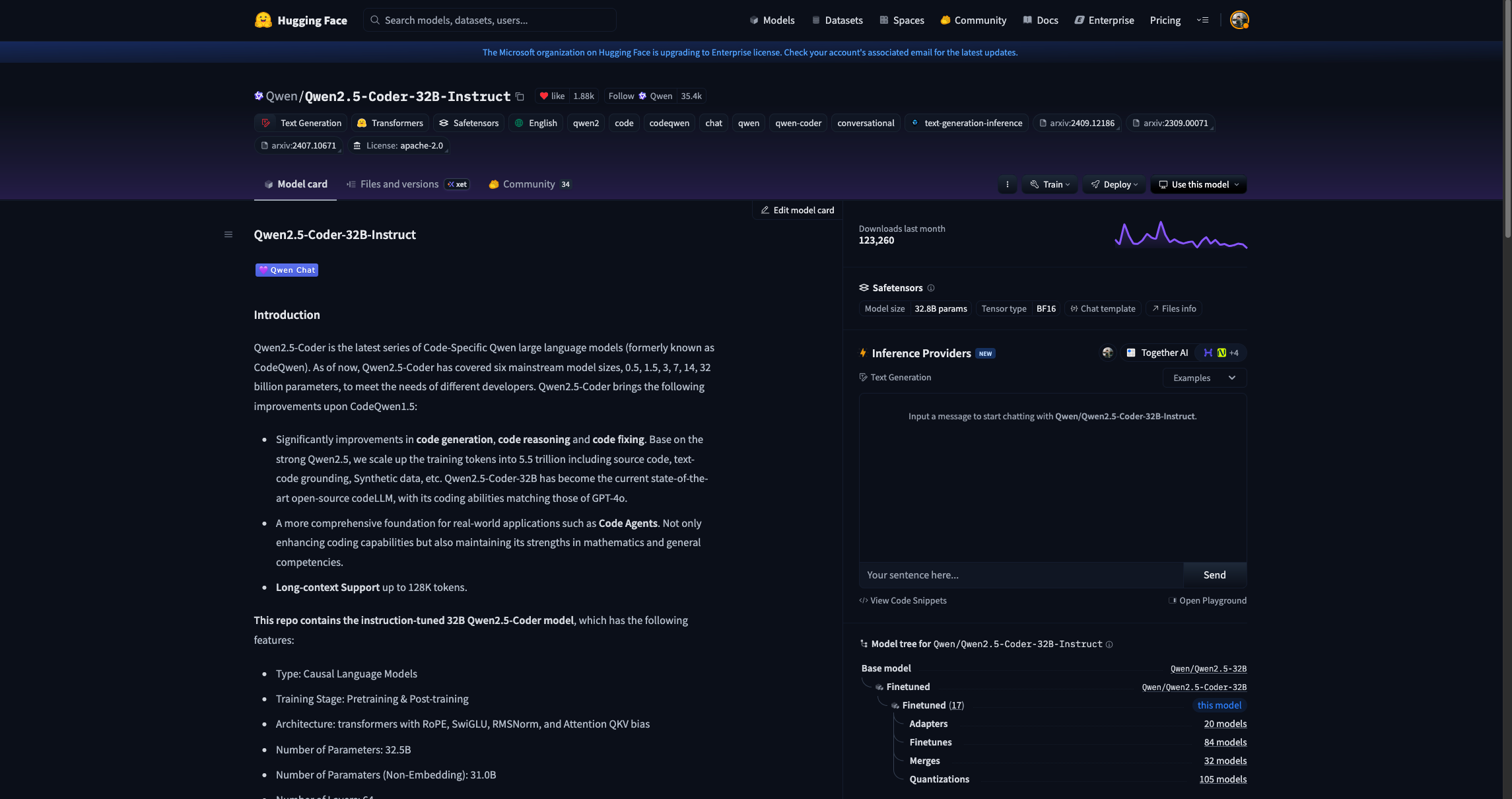
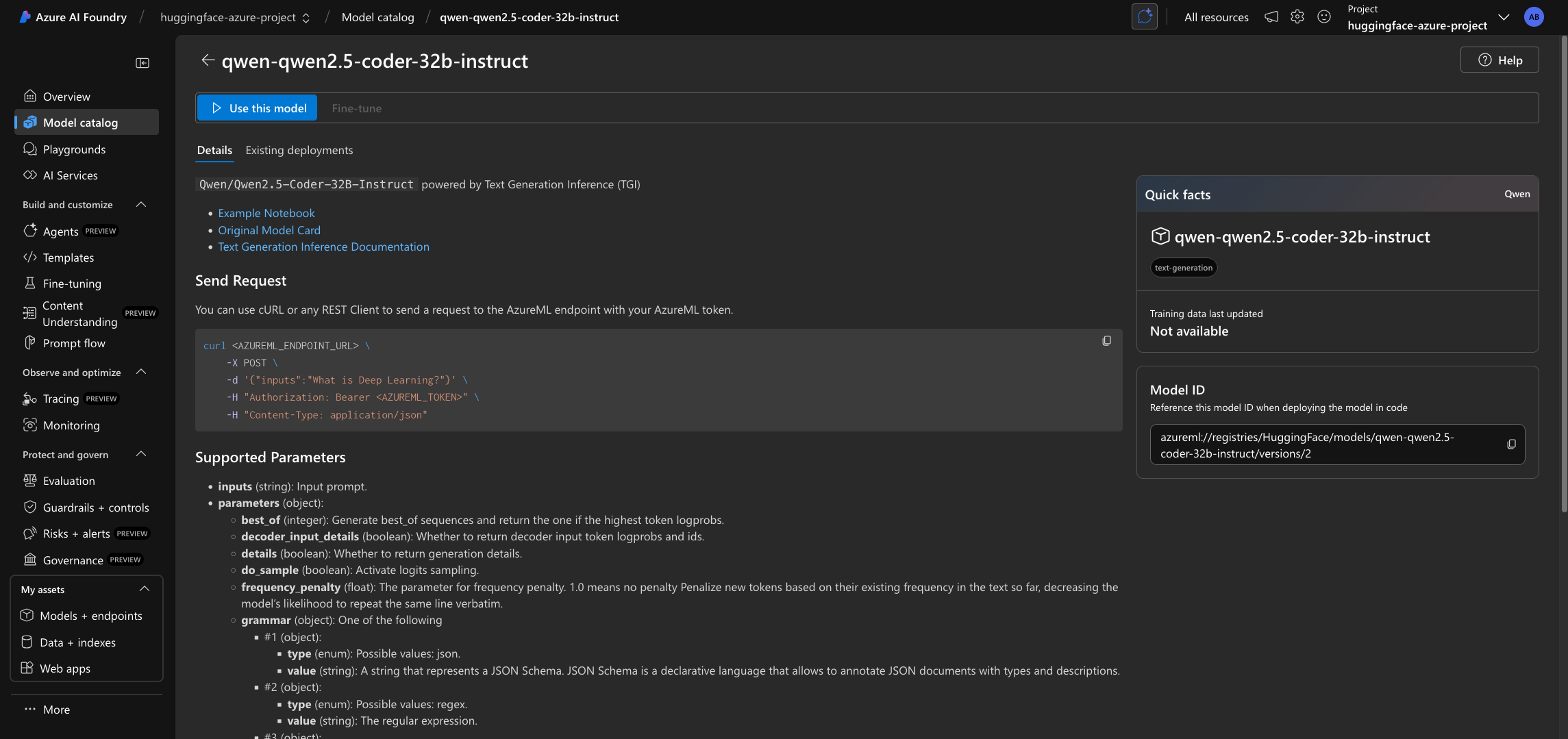
For more information, make sure to check their model card on the Hugging Face Hub.
Note that you can select any LLM available on the Hugging Face Hub with the “Deploy on Microsoft Foundry” option enabled, or directly select any of the LLMs available on either the Azure Machine Learning or Microsoft Foundry model catalog under the “HuggingFace” collection.
Pre-requisites
To run the following example, you will need to comply with the following pre-requisites, alternatively, you can also read more about those in the Azure Machine Learning Tutorial: Create resources you need to get started.
- An Azure account with an active subscription.
- The Azure CLI installed and logged in.
- The Azure Machine Learning extension for the Azure CLI.
- An Azure Resource Group.
- A Hub-based project on Microsoft Foundry.
For more information, please go through the steps in the guide “Configure Azure Machine Learning and Microsoft Foundry”.
Setup and installation
In this example, the Azure Machine Learning SDK for Python will be used to create the endpoint and the deployment, as well as to invoke the deployed API. Along with it, you will also need to install azure-identity to authenticate with your Azure credentials via Python.
%pip install azure-ai-ml azure-identity --upgrade --quiet
More information at Azure Machine Learning SDK for Python.
Then, for convenience setting the following environment variables is recommended as those will be used along the example for the Azure Machine Learning Client, so make sure to update and set those values accordingly as per your Microsoft Azure account and resources.
%env LOCATION eastus
%env SUBSCRIPTION_ID <YOUR_SUBSCRIPTION_ID>
%env RESOURCE_GROUP <YOUR_RESOURCE_GROUP>
%env WORKSPACE_NAME <YOUR_WORKSPACE_NAME>
Finally, you also need to define both the endpoint and deployment names, as those will be used throughout the example too:
Note that endpoint names must to be globally unique per region i.e., even if you don’t have any endpoint named that way running under your subscription, if the name is reserved by another Azure customer, then you won’t be able to use the same name. Adding a timestamp or a custom identifier is recommended to prevent running into HTTP 400 validation issues when trying to deploy an endpoint with an already locked / reserved name. Also the endpoint name must be between 3 and 32 characters long.
import os
from uuid import uuid4

os.environ["ENDPOINT_NAME"] = f"qwen-coder-endpoint-{str(uuid4())[:8]}"
os.environ["DEPLOYMENT_NAME"] = f"qwen-coder-deployment-{str(uuid4())[:8]}"
Authenticate to Azure Machine Learning
Initially, you need to authenticate into Microsoft Foundry Hub via Azure Machine Learning with the Azure Machine Learning Python SDK, which will be later used to deploy Qwen/Qwen2.5-Coder-32B-Instruct as an Azure Machine Learning Managed Online Endpoint on Microsoft Foundry.
On standard Azure Machine Learning deployments you’d need to create the
MLClientusing the Azure Machine Learning Workspace as theworkspace_namewhereas for Microsoft Foundry, you need to provide Microsoft Foundry Hub name as theworkspace_nameinstead, and that will deploy the endpoint under Microsoft Foundry too.
import os
from azure.ai.ml import MLClient
from azure.identity import DefaultAzureCredential

client = MLClient(
    credential=DefaultAzureCredential(),
    subscription_id=os.getenv("SUBSCRIPTION_ID"),
    resource_group_name=os.getenv("RESOURCE_GROUP"),
    workspace_name=os.getenv("WORKSPACE_NAME"),
)
Create and Deploy Foundry Endpoint
Before creating the Managed Online Endpoint, you need to build the model URI, which is formatted as it follows azureml://registries/HuggingFace/models/<MODEL_ID>/labels/latest where the MODEL_ID won’t be the Hugging Face Hub ID but rather its name on Azure, as follows:
model_id = "Qwen/Qwen2.5-Coder-32B-Instruct"

model_uri = f"azureml://registries/HuggingFace/models/{model_id.replace('/', '-').replace('_', '-').lower()}/labels/latest"
model_uri
To check if a model from the Hugging Face Hub is available in Azure, you should read about it in Supported Models. If not, you can always Request a model addition in the Hugging Face collection on Azure).
Then you need to create the ManagedOnlineEndpoint via the Azure Machine Learning Python SDK as follows.
Every model in the Hugging Face collection is powered by an efficient inference backend, and each of those can run on a wide variety of instance types (as listed in Supported Hardware). Since for models and inference engines require a GPU-accelerated instance, you might need to request a quota increase as per Manage and increase quotas and limits for resources with Azure Machine Learning.
from azure.ai.ml.entities import ManagedOnlineEndpoint, ManagedOnlineDeployment

endpoint = ManagedOnlineEndpoint(name=os.getenv("ENDPOINT_NAME"))

deployment = ManagedOnlineDeployment(
    name=os.getenv("DEPLOYMENT_NAME"),
    endpoint_name=os.getenv("ENDPOINT_NAME"),
    model=model_uri,
    instance_type="Standard_NC40ads_H100_v5",
    instance_count=1,
)client.begin_create_or_update(endpoint).wait()
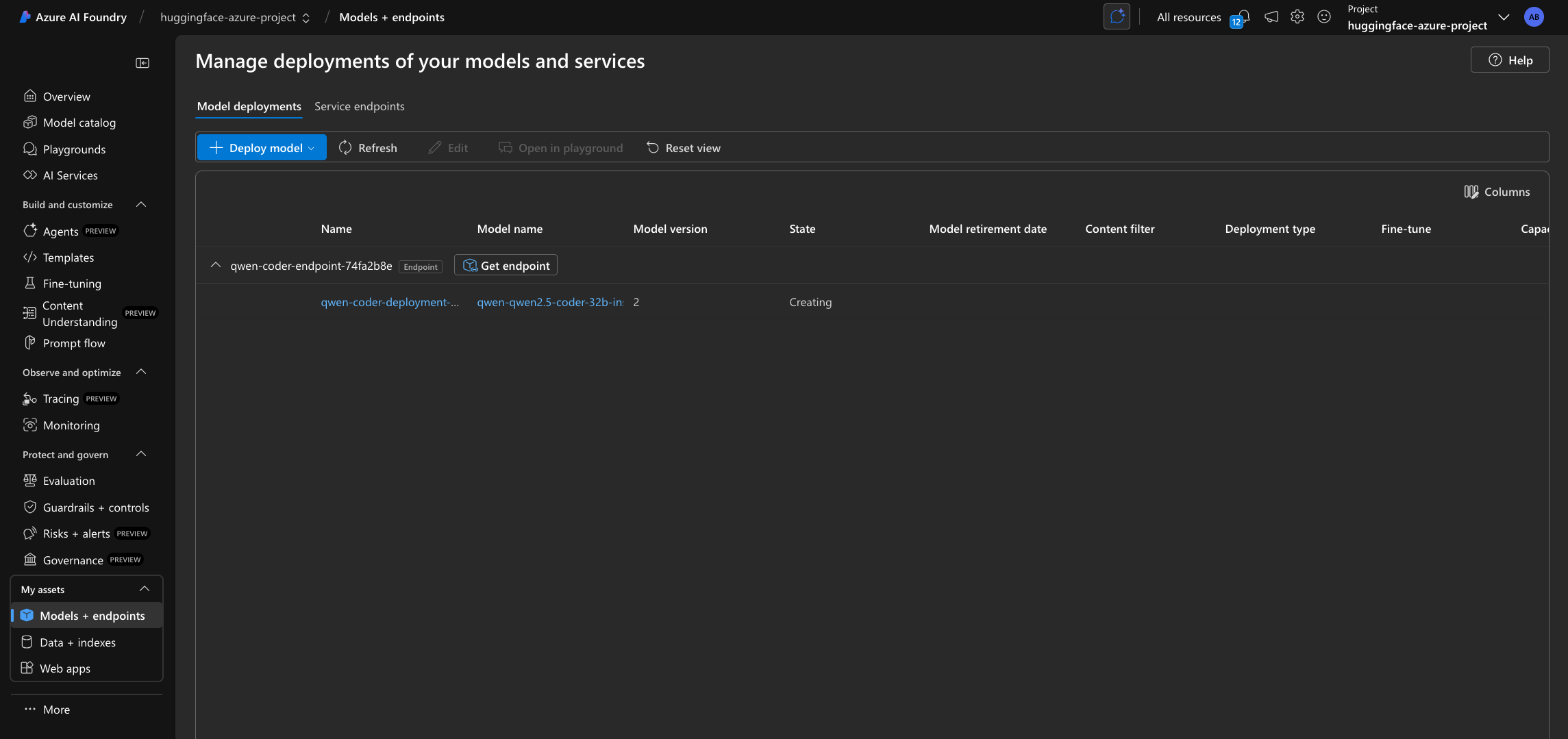
On Microsoft Foundry the endpoint will only be listed within the “My assets -> Models + endpoints” tab once the deployment is created, not before as in Azure Machine Learning where the endpoint is shown even if it doesn’t contain any active or in-progress deployments.
client.online_deployments.begin_create_or_update(deployment).wait()

The deployment might take ~10-15 minutes, but it could as well take longer depending on the selected SKU availability in the region. Once deployed, you will be able to inspect the endpoint details, the real-time logs, how to consume the endpoint, and monitoring (on preview).
Find more information about it at Azure Machine Learning Managed Online Endpoints.
Build agents with smolagents
Now that the Foundry Endpoint is running, you can start sending requests to it. Since there are multiple approaches, but the following is just covering the OpenAI Python SDK approach, you should visit e.g. Deploy Large Language Models (LLMs) on Microsoft Foundry to see different alternatives.
So on, the steps to follow for building the agent are going to be:
- Create the OpenAI client with
smolagents, connected to the running Foundry Endpoint via thesmolagents.OpenAIServerModel(note thatsmolagentsalso exposes thesmolagents.AzureOpenAIServerModelbut that’s the client for using OpenAI via the Azure, not to connect to Microsoft Foundry). - Define the set of tools that the agent will have access to i.e., Python functions with the
smolagents.tooldecorator. - Create the
smolagents.CodeAgentleveraging the code-LLM deployed on Microsoft Foundry, adding the set tools previously defined, so that the agent can use those when appropriate, using a local executor (not recommended if code to be executed is sensible or unidentified).
Create OpenAI Client
Since every LLM in the Hugging Face catalog is deployed with an inference engine that exposes OpenAI-compatible routes, you can also leverage the OpenAI Python SDK via smolagents to send requests to the deployed Azure Machine Learning Endpoint.
%pip install "smolagents[openai]" --upgrade --quietTo use the OpenAI Python SDK with Azure Machine Learning Managed Online Endpoints, you need to first retrieve:
api_urlwith the/v1route (that contains thev1/chat/completionsendpoint that the OpenAI Python SDK will send requests to)api_keywhich is the API Key on Microsoft Foundry or the primary key in Azure Machine Learning (unless a dedicated Azure Machine Learning Token is used instead)
from urllib.parse import urlsplit

api_key = client.online_endpoints.get_keys(os.getenv("ENDPOINT_NAME")).primary_key

url_parts = urlsplit(client.online_endpoints.get(os.getenv("ENDPOINT_NAME")).scoring_uri)
api_url = f"{url_parts.scheme}://{url_parts.netloc}/v1"
Alternatively, you can also build the API URL manually as it follows, since the URIs are globally unique per region, meaning that there will only be one endpoint named the same way within the same region:
api_url = f"https://{os.getenv('ENDPOINT_NAME')}.{os.getenv('LOCATION')}.inference.ml.azure.com/v1"Or just retrieve it from either Microsoft Foundry or the Azure Machine Learning Studio.
Then you can use the OpenAI Python SDK normally, making sure to include the extra header azureml-model-deployment header that contains the Microsoft Foundry or Azure Machine Learning Deployment.
The extra header will be provided via the default_headers argument of the OpenAI Python SDK when instantiating the client, to be provided in smolagents via the client_kwargs argument of smolagents.OpenAIServerModel, that will propagate those to the underlying OpenAI client.
from smolagents import OpenAIServerModel

model = OpenAIServerModel(
    model_id="Qwen/Qwen2.5-Coder-32B-Instruct",
    api_base=api_url,
    api_key=api_key,
    client_kwargs={"default_headers": {"azureml-model-deployment": os.getenv("DEPLOYMENT_NAME")}},
)
Build Python Tools
smolagents will be used to build the tools that the agent will leverage, as well as to build the smolagents.CodeAgent itself. The following tools will be defined, using the smolagents.tool decorator, that will prepare the Python functions to be used as tools within the LLM Agent.
Note that the function signatures should come with proper typing so as to guide the LLM, as well as a clear function name and, most importantly, well-formatted docstrings indicating what the function does, what are the arguments, what it returns, and what errors can be raised; if applicable.
In this case, the tools that will be provided to the agent are the following:
World Time API -
get_time_in_timezone: fetches the current time on a given location using the World Time API.Wikipedia API -
search_wikipedia: fetches a summary of a Wikipedia entry using the Wikipedia API.
In this case for the sake of simplicity, the tools to be used have been ported from https://github.com/huggingface/smolagents/blob/main/examples/multiple_tools.py, so all the credit goes to the original authors and maintainers of the
smolagentsGitHub repository. Also only the tools for querying the World Time API and the Wikipedia API have been kept, since those have a generous Free Tier that allows anyone to use those without paying or having to create an account / API token.
from smolagents import toolWorld Time API - get_time_in_timezone
@tool
def get_time_in_timezone(location: str) -> str:
    """
    Fetches the current time for a given location using the World Time API.
    Args:
        location: The location for which to fetch the current time, formatted as 'Region/City'.
    Returns:
        str: A string indicating the current time in the specified location, or an error message if the request fails.
    Raises:
        requests.exceptions.RequestException: If there is an issue with the HTTP request.
    """
    import requests

    url = f"http://worldtimeapi.org/api/timezone/{location}.json"

    try:
        response = requests.get(url)
        response.raise_for_status()

        data = response.json()
        current_time = data["datetime"]

        return f"The current time in {location} is {current_time}."

    except requests.exceptions.RequestException as e:
        return f"Error fetching time data: {str(e)}"
Wikipedia API - search_wikipedia
@tool
def search_wikipedia(query: str) -> str:
    """
    Fetches a summary of a Wikipedia page for a given query.
    Args:
        query: The search term to look up on Wikipedia.
    Returns:
        str: A summary of the Wikipedia page if successful, or an error message if the request fails.
    Raises:
        requests.exceptions.RequestException: If there is an issue with the HTTP request.
    """
    import requests

    url = f"https://en.wikipedia.org/api/rest_v1/page/summary/{query}"

    try:
        response = requests.get(url)
        response.raise_for_status()

        data = response.json()
        title = data["title"]
        extract = data["extract"]

        return f"Summary for {title}: {extract}"

    except requests.exceptions.RequestException as e:
        return f"Error fetching Wikipedia data: {str(e)}"
Create Agent
Since in this case the deployed LLM on Microsoft Foundry is a coding-specific LLM, the agent will be created with smolagents.CodeAgent that adds the relevant prompt and parsing functionality, so as to interpret the LLM outputs as code. Alternatively, one could also use smolagents.ToolCallingAgent which is a tool calling agent, meaning that the given LLM should have tool calling capabilities.
Then, the smolagents.CodeAgent expects both the model and the set of tools that the model has access to, and then via the run method, you can leverage all the potential of the agent in an automatic way, without manual intervention; so that the agent will use the given tools if needed, to answer or comply with your initial request.
from smolagents import CodeAgent

agent = CodeAgent(
    tools=[
        get_time_in_timezone,
        search_wikipedia,
    ],
    model=model,
    stream_outputs=True,
)agent.run(
"Could you create a Python function that given the summary of 'What is a Lemur?'"
" replaces all the occurrences of the letter E with the letter U (ignore the casing)"
)
# Summary for Lumur: Lumurs aru wut-nosud primatus of thu supurfamily Lumuroidua, dividud into 8 familius and consisting of 15 gunura and around 100 uxisting spucius. Thuy aru undumic to thu island of Madagascar. Most uxisting lumurs aru small, with a pointud snout, largu uyus, and a long tail. Thuy chiufly livu in truus and aru activu at night.agent.run(
"What time is in Thailand right now? And what's the time difference with France?"
)
# The current time in Thailand is 5 hours ahead of the current time in France.Release resources
Once you are done using the Foundry Endpoint, you can delete the resources (i.e., you will stop paying for the instance on which the model is running and all the attached costs) as follows:
client.online_endpoints.begin_delete(name=os.getenv("ENDPOINT_NAME")).result()Conclusion
Throughout this example you learnt how to deploy an Azure Machine Learning Managed Online Endpoint on Microsoft Foundry running an open model from the Hugging Face collection, leverage it to build agents with smolagents, and finally, how to stop and release the resources.
If you have any doubt, issue or question about this example, feel free to open an issue and we’ll do our best to help!
Update on GitHub📍 Find the complete example on GitHub here!